
Most people use SharePoint because it is there. Either it was already in place when they joined the company, or it arrives with Microsoft 365 and turns up as the thing sitting behind a file tab in Teams. Just because somebody uses SharePoint, it does not necessarily mean they know why they use it or what it could be used for.
SharePoint is a highly versatile solution that can meet multiple use cases, but most organisations are running it without having properly thought about what it can and should be used for. I have spent 27 years in this industry, seven of them leading Microsoft 365 delivery at Content Formula, and the single most common conversation I have is with a business that has been paying for SharePoint for years but using perhaps a fifth of it, or not using it in the optimum way. In this article I’m going to explore some of the SharePoint basics and cover the things you should and need to know when using it.
In summary: SharePoint is Microsoft’s content and collaboration platform, included in almost every Microsoft 365 business and enterprise subscription. It stores and organises files, hosts internal websites and intranets, structures information in lists, and controls who can see what. Over 200,000 organisations use it. Since 2026 it also acts as the content layer that Microsoft 365 Copilot and its agents read from, which means how well SharePoint is organised now determines how accurate an organisation’s AI answers are.
On this page
- What is SharePoint?
- What is SharePoint used for?
- What are the building blocks of SharePoint?
- What changed when Copilot started depending on SharePoint?
- SharePoint Online or SharePoint Server – which do you have?
- Can SharePoint be your intranet?
- Where does SharePoint need help?
- How should you get started with SharePoint?
- Frequently asked questions
What is SharePoint?
SharePoint is a web-based platform from Microsoft for storing, structuring, publishing and controlling access to information inside an organisation. It has been running since 2001, making it 25 years old and one of the longest-lived products Microsoft still actively develops. According to Microsoft’s own figures, over 200,000 organisations and 190 million people rely on it.
The key thing to understand is that SharePoint is not an application in the way Word or Outlook are applications. It is a platform, which means it does not arrive finished. It arrives as a set of capabilities that you configure into something useful. That is why two businesses on identical licences can have wildly different experiences of it; one could have a well-structured content estate, the other 400 orphaned sites and a search box nobody trusts.
You do not download or install it. If your organisation pays for Microsoft 365 Business Standard or above, SharePoint is already provisioned in your tenant and has been since the day you signed up.
What is SharePoint used for?
Five uses account for the overwhelming majority of what we see in practice.
Document management. This is where most organisations start, and often where they stop. Files move off local servers and personal drives into structured libraries with version history, co-authoring, and permissions that can be set precisely. The trade-off is that libraries reward structure and punish neglect, which is a theme you will notice running through this whole article.
Intranets and internal communications. SharePoint is the most widely used foundation for employee intranets in the world. Organisations use it to publish news, host HR and policy content, run department pages, and give employees a single starting point for the working day. Nearly all of this is built on communication sites, which we have covered separately in how to use SharePoint communication sites.
Team and project collaboration. Every team gets a site with its own files, lists and pages. Worth knowing: when someone creates a team in Microsoft Teams, SharePoint quietly provisions a site behind it to hold the files. A very large number of people use SharePoint daily without ever knowing they are in it.
Structured data and light business applications. SharePoint lists behave like spreadsheets with rules; they include defined data types, validation, views, and permissions. Combined with Power Automate, SharePoint lists can turn into approval workflows, asset registers, and request trackers without a developer being involved. Our beginner’s guide to SharePoint lists covers this in detail.
Content publishing and governance at scale. Larger organisations use SharePoint to manage who can create and publish content, apply retention and sensitivity labels through Microsoft Purview, and maintain consistency across hundreds of internal sites.
We see a number of common patterns across all these use cases. Firstly, SharePoint is good at holding and controlling information; that is at the root of all these use cases. Secondly, SharePoint does not decide how your information should be organised. That decision is yours, and it is the one that more or less determines whether the platform works for you.
Thirdly, SharePoint is decentralised by design. Any site owner can create content, grant access and shape their own corner of the estate without asking anyone. That is deliberate, and it is a large part of why adoption spreads so quickly. It is also why central functions – IT, internal communications, compliance – routinely find they have less say over how SharePoint is used than they expected. The security controls are there if you want them. The governance controls largely are not.
What are the building blocks of SharePoint?
From an implementation point of view, SharePoint is assembled from seven core components.
| Component | What it is | What it is actually for |
|---|---|---|
| Sites | The container. A mini website with its own pages, files, navigation and permissions. | One site per team, department, project or audience. Communication sites publish outwards; team sites support collaboration. |
| Document libraries | Structured file storage with metadata, version history and check-in/check-out. | Anywhere files need to be found by more than the person who created or saved them. |
| Lists | Tables of structured information with defined data types and validation. | Registers, trackers, directories, request logs and inventories; anything that would otherwise be a shared spreadsheet. |
| Pages | The web pages employees read, built from web parts in a block editor. | News, landing pages, guidance, department homepages. No code required for standard authoring. |
| Permissions | Access control at site, library, folder and item level, driven by Entra ID groups. | Deciding who sees what. The most frequently misconfigured part of the platform. |
| Search | Microsoft Search, indexing content across SharePoint, OneDrive and Teams via Microsoft Graph. | Finding things. Only as good as the structure and metadata underneath it. |
| Web parts | The individual blocks and components that make up a page with different features, content and some limited integrations. Each web part is configurable. | Putting together different pages to cover various content types and use cases. |
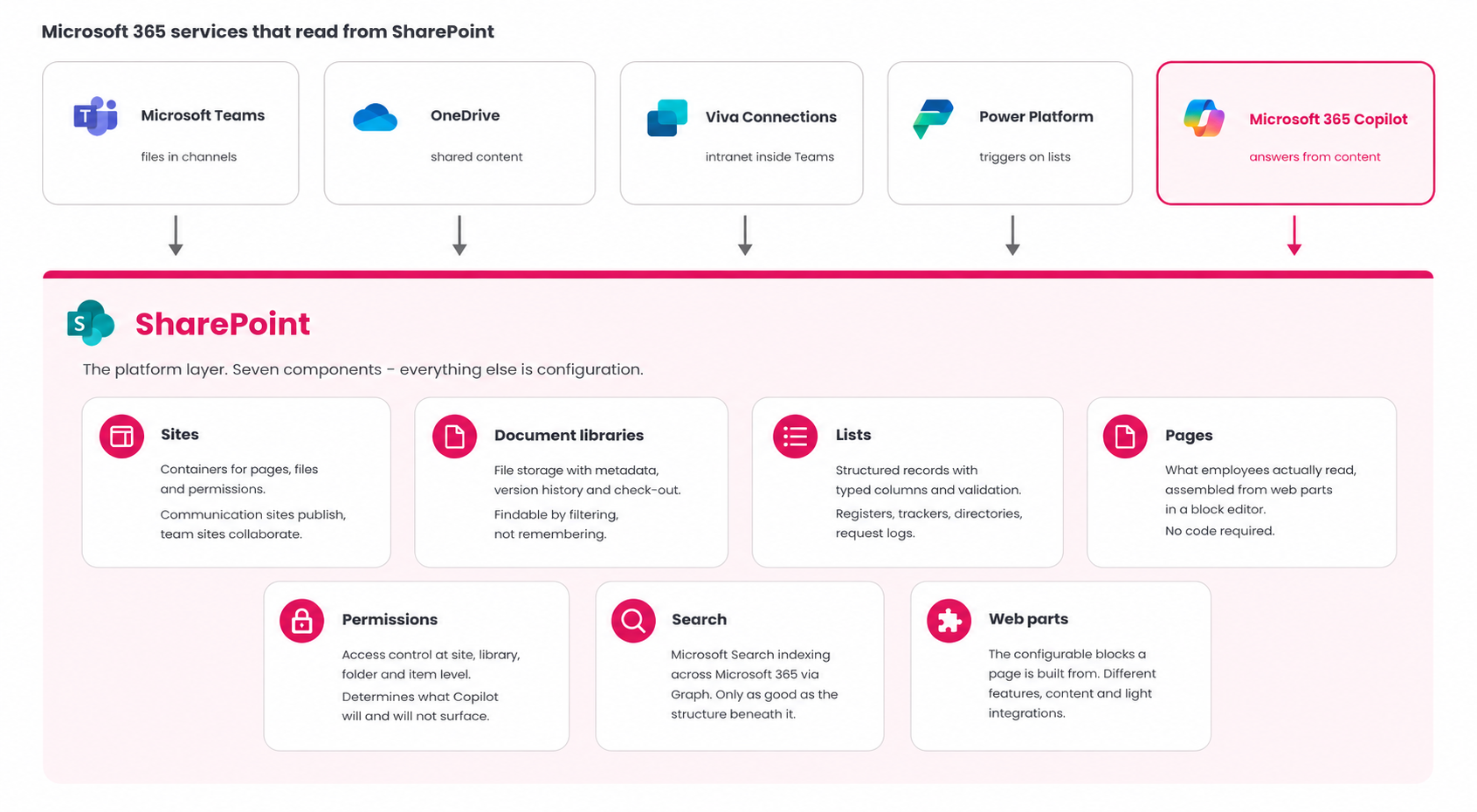
Diagram showing the seven core SharePoint components – sites, document libraries, lists, pages, permissions, search and web parts – as a foundation layer, with Microsoft Teams, OneDrive, Viva Connections, Power Platform and Microsoft 365 Copilot shown above as services that read from and write to that layer.
It’s worth bearing in mind that SharePoint sits underneath a lot of Microsoft 365 that does not look like SharePoint. Files shared in Teams live in a SharePoint library. Viva Connections surfaces SharePoint content inside Teams. Power Automate triggers on SharePoint lists. And as of this year, Copilot reads from all of it.
One thing about how those sites fit together is worth flagging, because it reverses advice we used to give. The traditional approach was a hierarchical site structure: a top-level site with subsites nested underneath it, sometimes several levels deep. We built plenty of those. We no longer recommend it. Modern SharePoint uses a hub and spoke model instead: sites sit in a flat structure, each one independent, connected to one or more hub sites that supply shared navigation, branding and a common search scope. The practical difference is that a flat estate can be reorganised as the business changes. A deep hierarchy cannot, not without some kind of migration. If you have inherited an estate built the old way, that is worth knowing before you plan anything else.
What changed when Copilot started depending on SharePoint?
Three things have happened to SharePoint in the last twelve months which digital workplace teams need to know.
- Copilot in SharePoint is now on by default. Microsoft confirmed that from 16 June 2026, Copilot in SharePoint began rolling out as on by default for everyone holding a Microsoft 365 Copilot licence. It is still an opt-out preview rather than a finished release, which is worth knowing before you plan around it. Employees can ask questions in natural language and get answers assembled from pages, policies and documents they have permission to see. One naming note, because it causes real confusion: this is the same product that shipped as the SharePoint Knowledge Agent in September 2025 and was renamed AI in SharePoint in April 2026. One product, three names, and older guidance still uses all three.
- The same tool now builds SharePoint, it does not just answer questions about it. Teams can now describe a site, library, page or list in plain language and have it built. It also extracts and applies metadata automatically, and adapts libraries as content changes. The practical consequence is that Copilot is no longer read-only. It can create pages and change list items, so “we are only letting people ask it questions” is no longer an accurate description of the risk.
- Agents have arrived. Site owners can build scoped assistants anchored to specific SharePoint content – an HR agent answering from the HR knowledge base, an IT agent grounded in support documentation. Agents can also draw on SharePoint lists as structured data sources, though the limits are tighter than most people expect: one list per agent, a maximum of 20,000 items and 50 MB of text, beyond which the agent truncates the list and says so in its answer.
Taken together, these three developments change what SharePoint is. It has gone from being the place content is stored to being the layer that an organisation’s AI surfaces and draws responses from. This has consequences that most businesses have not absorbed yet.
One practical note for administrators. What changed in June was the default, not the capability. Set-SPOTenant -KnowledgeAgentScope still controls which sites Copilot in SharePoint runs on, and tenant-level and site-level opt-outs set before the rollout were honoured. If nobody in your organisation has looked at that setting, it is now set to all sites.
Copilot does not improve bad content. It finds it faster and states it with confidence.
Consider what that means in practice. An employee asks Copilot what the parental leave policy is. Copilot searches, finds a document, and answers. If there are three versions of that policy in three libraries and the most accessible one was last updated in 2021, Copilot will answer from it confidently, and without flagging any doubts about the accuracy of the content. Before Copilot, a stale document buried four folders deep was a nuisance. Now it is an authoritative-sounding wrong answer delivered at scale, with all the risk of the potential consequences that may follow.
The permissions dimension is sharper still. Copilot respects existing permissions exactly. It does not grant anyone new access. What it does is surface documents that were never properly restricted in the first place – and years of quietly accumulated oversharing becomes visible in a single afternoon.
“The day Copilot goes live is the day every permissions shortcut you’ve ever taken becomes searchable. We have seen salary spreadsheets, redundancy plans, and board documents surface simply because someone incorrectly shared a folder with ‘Everyone’ five years ago and forgot. Copilot doesn’t breach anything. It just answers questions using content people never realised they could already see.”
Joe Perry, technical director, Content Formula
So, the practical advice, if you take nothing else from this section: turning on Copilot before you have reviewed permissions is the fastest available method for discovering what your employees can already see. Content audits, tightening sharing defaults, retiring stale pages and enforcing metadata standards are now prerequisites.
Not sure how ready your content estate is?
| Area | What we look for | Why it matters for Copilot |
|---|---|---|
| Content quality | Duplication, superseded versions, unowned content, material nobody has reviewed in years | Copilot cannot tell current from obsolete. Whatever it reads, it will repeat |
| Permissions | Oversharing, inherited access nobody intended, sites open to everyone by accident | Copilot respects permissions precisely, which exposes exactly what should not have been shared |
| Structure and metadata | Information architecture, taxonomy, tagging, whether documents carry any usable context | Determines whether Copilot can distinguish a policy from a draft from a meeting note |
| Use cases and licensing fit | Who would genuinely benefit, what they would use it for, and how many seats that actually needs | Deciding this after buying licences is how organisations end up paying for shelfware |
The output is a prioritised list of what to fix, what to accept, and what to fix later – not a report saying you are not ready. Everybody is partly not ready.
If you are planning a Copilot rollout and need an opinion on whether your SharePoint content and permissions are ready for it, book a discovery conversation with our consultancy team.
SharePoint Online or SharePoint Server – which do you have?
Most confusion about SharePoint comes from people comparing notes across two products that share a name.
| SharePoint Online | SharePoint Server Subscription Edition | |
|---|---|---|
| Hosting | Microsoft’s cloud, as part of Microsoft 365. | Your own servers and infrastructure. |
| Licensing | Included in Microsoft 365 business and enterprise plans. | Separate subscription licence plus infrastructure and operational cost. |
| Updates | Continuous and automatic. | Twice-yearly feature updates you choose when to install. |
| AI and Copilot | Full access – Copilot in SharePoint, AI in SharePoint, agents. | Not available. The AI layer is cloud-only. A preview Graph connector can index on-premises documents and site pages so Copilot can find them, but the AI itself still runs in the cloud. |
| Best suited to | Almost every organisation. | Genuine data residency or regulatory constraints that rule out cloud. |
The Copilot factor is an important consideration, as Microsoft Copilot runs on SharePoint Online only. Therefore, if you run SharePoint on-premises, you are effectively opting out of the AI layer that represents the bulk of Microsoft’s current investment in the platform. There is a partial route back. The SharePoint Server Microsoft 365 Copilot connector, a Graph connector supported on 2016, 2019 and Subscription Edition, indexes on-premises content so that Copilot Chat and Copilot Search can find it. Three caveats matter. It is still in preview. It crawls documents and site pages only, so lists and structured content stay invisible. And it needs the Graph connector agent installed on-premises, plus Entra Connect Sync, or security trimming will not work and people will see results they should not. It makes on-premises content findable. It does not give you Copilot in SharePoint, AI-assisted building or agents, none of which run anywhere but the cloud.
There is also a deadline that has already passed. Extended support for SharePoint Server 2019 ended on 14 July 2026, and SharePoint Server 2016 reached the same date. Mainstream support for 2019 had already ended in January 2024, so feature updates stopped some time ago; what ended in July was the final phase of security patching. Microsoft did not extend either date, and unlike Windows Server and SQL Server there is no paid extended security update programme to fall back on. That leaves exactly two supported paths: move to SharePoint Online, or upgrade to Subscription Edition, which is the only remaining on-premises version under support.
If you are still on 2019 or 2016, the decision has been made for you. As of last month, you are running a platform that will receive no further security updates, which is a different category of problem from running an old version. Newly discovered vulnerabilities in those builds will not be patched.
Can SharePoint be your intranet?
Technically, SharePoint is a strong foundation for an intranet. SharePoint gives you communication sites, hub sites, news publishing, audience targeting, search and Teams integration without buying anything additional.
However, native SharePoint alone is simply not enough for most organisations. While out-of-the-box SharePoint Online can support an intranet for small organisations with 100 people or fewer with straightforward needs, it won’t cut it for anyone larger, more complex or with more advanced needs. Businesses with a diverse workforce, geographic spread or an active internal communications function will want more from news targeting, personalisation, content governance, analytics and branding support than ships out of the box.
This whole question deserves more room than it can get here, and my colleague John Scott, UX director at Lightspeed365, has explored it more fully. Start with his guide to what an intranet is as well as his complete guide to SharePoint intranets which covers different build options, the Copilot licensing implications, and where native SharePoint runs out of road.
Where does SharePoint need help?
SharePoint is a genuinely strong platform and it improves with every release cycle. It is also asked to do a great deal, which means some things it does adequately rather than brilliantly.
In the interests of transparency: Content Formula is a Microsoft 365 consultancy, and we are paid to solve most of the problems listed below, but we also know you may be in a position to solve these issues internally:
- Content governance is largely manual. There is no native way to track content freshness at scale, flag pages overdue for review, or enforce ownership. Content sprawl is the most common reason a SharePoint estate degrades over time, and very little in the platform stops it happening.
- Findability depends entirely on what you built and what you put into it. Microsoft Search is a capable engine sitting on top of Microsoft Graph. It is also only as good as your information architecture and metadata. The most common complaint we hear about SharePoint is a search complaint, and the underlying cause is almost never search.
- Permissions are powerful and unforgiving. Granular control at four levels is a real strength. It also means inherited permissions, broken inheritance and over-sharing accumulate quietly for years, and nobody notices until something surfaces that should not have, perhaps through Microsoft Copilot.
- It expects expertise most teams do not have. Building something good needs information architecture, content strategy, and an understanding of site provisioning and hub structures. The people who usually use SharePoint internally are communicators and generalists, not platform specialists. The gap between having a licence and having something that works is more often a knowledge gap than a technology one.
- The default experience looks like the default experience. Out of the box, pages look like SharePoint pages. For an intranet that employees are meant to choose to visit, that matters more than it sounds.
How should you get started with SharePoint?
The most common mistake is opening a blank site and starting to build. Work through these four questions first.
- What problems are you solving? Document management, intranet, team collaboration and business process automation are four different projects with four different structures. Pick one and do it properly. Trying to do all four at once is the reliable route to a SharePoint estate that nobody can navigate. One pro-tip: undertake user research to ensure you fully understand the problem you need to solve. Never build on assumptions.
- Who owns it? Not who administers it, but who is accountable for whether the content is any good. Estates without a named owner deteriorate. Every single time. Another pro-tip: use a RACI matrix to capture the complexity of roles and responsibilities.
- What is your structure? Sites, hubs, navigation, metadata. This is the decision that is expensive to reverse later, so it is worth more thought than it usually gets. Our SharePoint design articles cover the practical approaches.
- Are your permissions defensible? If you cannot answer “who can see this?” for a given document, you are not ready to switch on AI over it.
If you already have SharePoint and it is not working, resist the urge to rebuild. In most cases the platform is fine and the structure underneath it is the problem. Diagnosing which of the two you have is a considerably cheaper first step than a migration.
Do nothing, though, and the position gets worse rather than staying still. Content volume grows, permissions drift further from intent, and Copilot makes both of those visible to every employee with a licence. The cost of inaction used to be a slightly annoying search experience. It is now the credibility of your organisation’s AI.
Frequently asked questions
Is SharePoint free?
No, but you may already be paying for it. SharePoint Online is included in most Microsoft 365 business and enterprise subscriptions at no additional cost. There is no free standalone version, and the on-premises Subscription Edition requires its own licence plus infrastructure.
What is the difference between SharePoint and OneDrive?
OneDrive is personal storage for your own working files. SharePoint is shared storage for content that belongs to a team or the organisation. The simplest test: if a colleague needs to find it after you leave, it belongs in SharePoint. They are built on the same underlying technology, which is why they behave so similarly.
What is the difference between SharePoint and Microsoft Teams?
Teams is where conversation happens. SharePoint is where content lives. They are not alternatives: every team created in Teams automatically gets a SharePoint site behind it to store its files. When you share a document in a Teams channel, you are putting it in SharePoint.
Do I need a Copilot licence to use the AI features in SharePoint?
For most of them, yes. Copilot in SharePoint and AI-assisted content creation require a Microsoft 365 Copilot licence in addition to your base plan. Agents work differently, with usage billed separately rather than requiring a full licence for everyone who interacts with them. Check Microsoft’s current licensing pages before budgeting, as both the packaging and the pricing changed during 2026.
Is SharePoint difficult to use?
For everyday tasks – reading pages, finding files, working in a team site – no. The modern page editor is genuinely straightforward, and content authors do not need technical skills. The difficulty sits in configuration and structure: information architecture, permissions models and metadata design are where organisations struggle, and those are decisions made once and lived with for years.
Can SharePoint be used as a public website?
It can technically publish externally, but it is not designed for it and you should use a proper content management system instead. SharePoint’s strengths – permissions, integration with Microsoft 365, internal search – are all built around known, authenticated users. For anonymous public audiences, those strengths stop being relevant.
About the author
Adam Hickman is Microsoft 365 consultant lead at Content Formula and leads the technical design and delivery of Microsoft 365 and SharePoint projects. With 27 years in the industry – spanning full-stack development, enterprise architecture and client consultancy across international blue-chip organisations – Adam is the person who makes sure what gets designed actually gets built properly. He has been at Content Formula for over seven years. A consultant with a passion for technology by day, Adam spends his weekends exploring new horizons on two wheels.
Where next?
If you want a straight answer on whether your SharePoint estate is set up to do what you need, that is the kind of question we answer every week.